Overview
MD Labs Online Services represents an effort to provide the perfect companion to the products released by MD Labs.
This companion comes in the shape of a responsive website, that will collect and display data from in-world products, allowing user to interact with them as well. MD Labs Online Services is totally free and without any hidden costs, available for anyone who purchased one of the compatible products listed below:
- MD Bid Board
MD Buy/Buy as Gift Script(discontinued)MD Buy/Buy as Gift Vendor(discontinued)- MD Gacha Machine Script
MD Gacha Machine(discontinued)MD Gacha Machine MESH(discontinued)- MD Group Gift Giver Script
MD Rez Tracker(discontinued)- MD Security System
- MD Smart Unpacker Script
- MD Trinket Machine
- MD Vendor System
- MD Visitors Tracker & Greeter
- MD Visitors Tracker Board & Greeter
- MD Visitors Tracker & Greeter (Bulb)
- MD Visitors Tracker & Greeter (Notepad)
Depending on the product, different features, data and interaction will be available. In many cases the user will be able not only to view the data collected in-world, but also interact with the product directly from the website, without any intervention in-world.
Lastly, the website have been designed to be easy to use, light and flexible, able to adapt automatically to every kind of displays, from desktop to laptops, from smartphones to tablets; this way user will always be able to login independently from the device used and enjoy the experience.
Initial setup
In order to be able to login and take advantage of the features provided by MD Labs Online Services, user is asked to complete the setup process in order to register the user account and activate the purchased product.
The few steps required are very quick and easy to perform and the only tool required is the MD Labs Online Service HUD that is provided with the product purchased.
Once wear the HUD the menu will drive the user through the simple steps required.
Account registration & product activation
! IMPORTANT: the user account is unique for all products working with the MD Labs Online Services website. This means the registration process is only required at the first time; if other products compatible with the MD Labs Online Services are purchased, these will be automatically activated and the user will be able to login using the account already created.
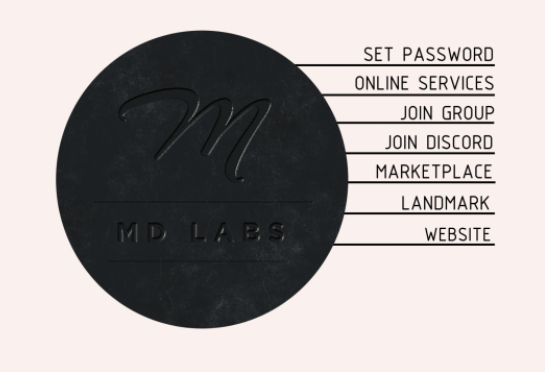
In order to start the account registration process, the user will have to wear the MD Labs Online Services HUD and click on the “SET PASSWORD” link; a dialog menu will appear and the user will have to click on the “REGISTER” button. At this point the user will be asked to submit a password for the Online Services account: this password can’t be blank and it will be used – along with the avatar name – to login the Online Services website. Submitting a valid password will create the account and automatically activate the product, finishing the setup.
! IMPORTANT: the password chosen can and should be different from the one used to login the user’s Second Life account.
! IMPORTANT: password can be changed anytime using the “change password” feature available on the MD Labs Online Service website.
At this point, the setup process is completed, and the user can log in the MD Labs Online Services website.
Login and utilisation
To login, user will have to go to the page of MD Labs Online Services and provide the Second Life avatar name or key (UUID) and the password chosen in the account registration step.
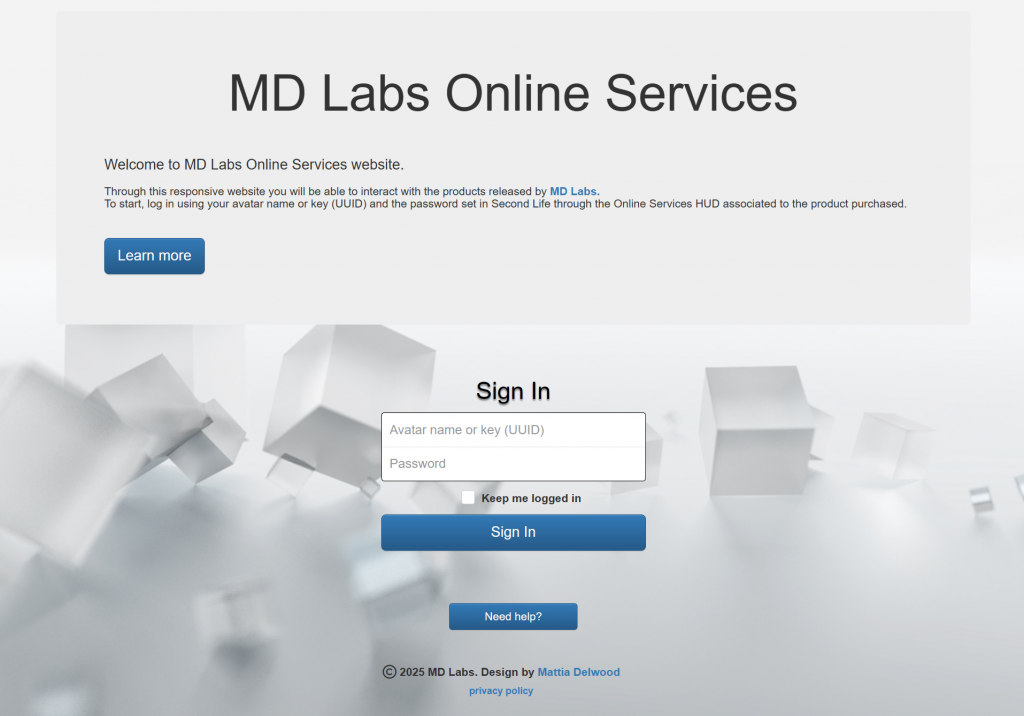
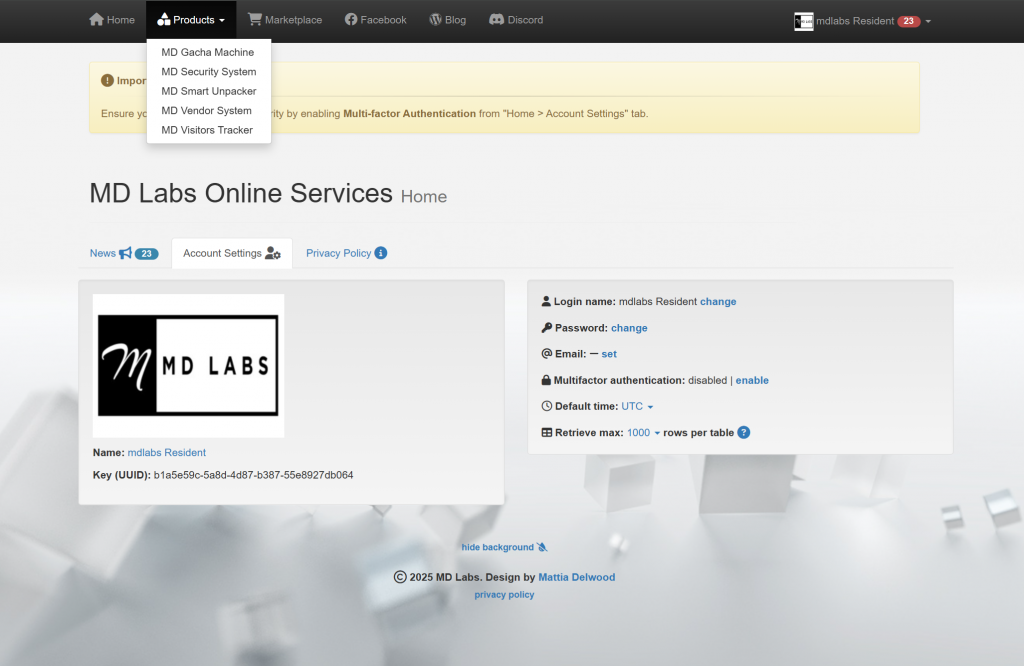
Once successfully log in, the Online Services home page will open and the user will find the products activated for Online Services under the “Product” drop down list, on the top of the home page, like shown below:
Change/reset password
To change or reset the MD Labs Online Services’s password, the user has two different options:
- from the Online Services website
- from the MD Labs Online Services HUD
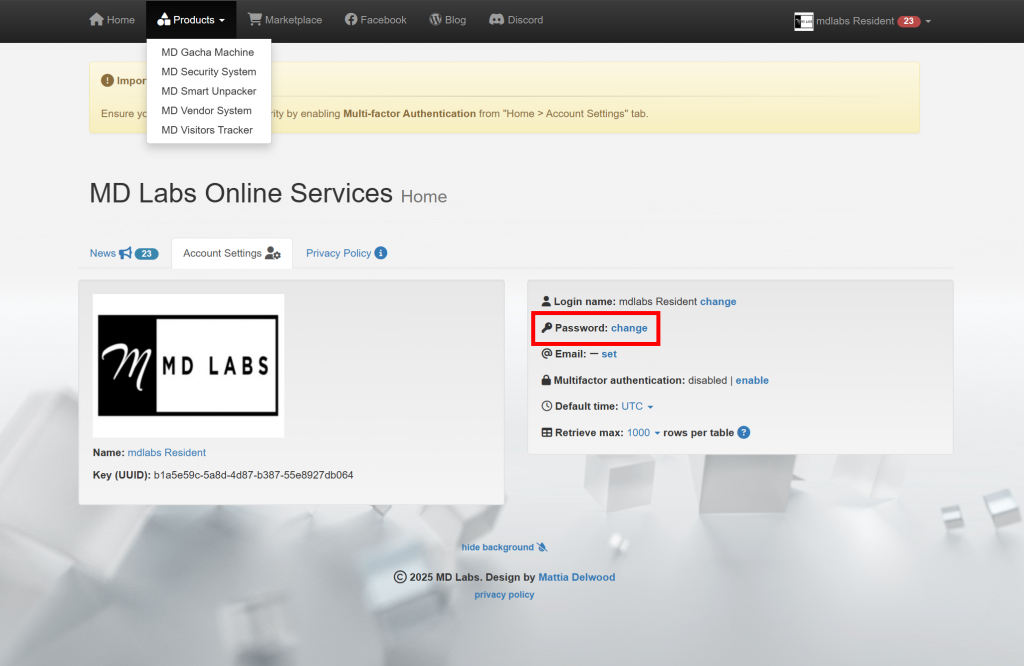
To change password from the MD Labs Online Services website, the user has to perform the login and reach the ‘Account settings’ panel on the right side of the Home. A ‘change password’ link is present to start the procedure.
If for some reason the user is unable to login the MD Labs Online Services website, a second option to change or reset the password consist in wearing the MD Labs Online Services HUD that is included with the product purchased. Once the HUD is on, simply clicking to the “SET PASSWORD” link will lead the user to the password change procedure.
Enabling multi-factor authentication (MFA) to strengthen your account security
Another feature – additional but strongly suggested – availble on MD Labs Online Services website is the multi-factor authentication, or MFA.
Multi-factor authentication (MFA) is a multi-step account login process that requires users to enter more information than just a password. For example, along with the password, users might be asked to enter a code sent to their email, answer a secret question, or scan a fingerprint.
The process to enable MFA is very straightforward: the user will have login the MD Labs Online Services website, reach the ‘Account settings’ panel and click on the ‘enable’ link corresponding to the multi-factor authentication entry; at this point a QR-code will generated and displayed: the user will have to scan the code with the phone using the preferred authentication app, such as Google Authenticator, Microsoft Authenticator or any app of choice. Once successfully scanned the QR-code a 6-digit code will be generated on the app: submitting the code and confirming will enable the multi-factor authentication.

Once the MFA is enabled, every time the user will login the MD Labs Online Services website will be requested to provide a one-time 6-digit code in addition to the password, strengthening the overall protection.
2025 MD Labs